


VIDEO GUIDES -
Video Guide (Beginners introduction + AnkerGames Guide)
Short Video Guide
WRITTEN GUIDE -
**HOW TO INSTALL GAMES **
1) After downloading, go into your file explorer and then make a folder in C drive (or whichever drive you wanna extract your game onto) .
To create a new folder on right-click on an empty space in File Explorer , select New, and then Folder
Let us call it `Games` . So the location of this folder becomes` C:\Games`
2) Then basically you wanna exclude from antivirus the game folder so use below steps Or From the image -
Windows Security > Virus & threat protection > Manage settings > Scroll to Exclusions > Add or remove exclusions > Add an exclusion > Select Folder > Choose the Games folder we made earlier.
Also make sure there are no other antivirus softwares like mcafee , norton or anything like that. Uninstall them coz they are unnecessary , windows defender is more than enough
Also Do This:
How to disable Smart app control in Windows 11
Search and open Windows Security
Click App & browser control
Click Smart App Control settings
Select Off: Choose the Off option and confirm by clicking "Yes, I'm sure" when prompted.
3) Then download and install Nanazip from - NanaZip (GitHub Release)
After downloading and installing Nanazip , go into your file explorer and go where your downloaded game file is.
Right-click the downloaded game zip/rar file > Select Nanazip > Extract Files…
In the destination path, select `C:\Games`
Click OK to start extracting and then wait for it to complete.
4) Now you need some libraries from Microsoft which is essential for your game to run , otherwise your game will give errors on running -
https://www.techpowerup.com/download/visual-c-redistributable-runtime-package-all-in-one/
1. Click on the link above, then click on ‘Download’.
2. Click on any flag to start the download
3. Extract the archive: right-click -> **"Extract all “**, then press **”Extract ’**.
4. The extracted folder opens: right-click on **"install_all “** -> **”Run as administrator ’** to launch the installation
Then install all theses soft :
- DirectX End-User Runtime Web Installer
- Microsoft XNA Framework Redistributable 4.0
- OpenAL 1.1 Windows Installer
5. Wait for it to finish, restart your PC
5) Now to Launch the game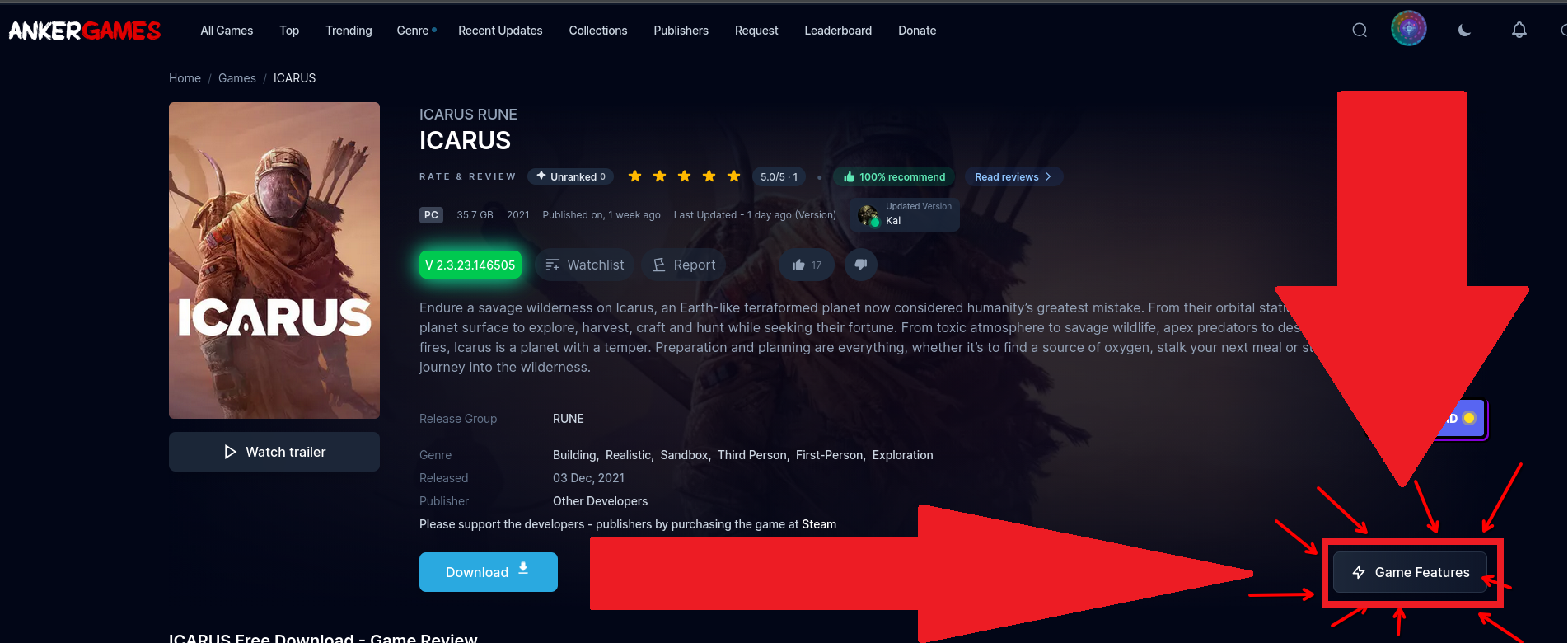
Go the game page and click on "Game Feature" to see all the info, including where to launch, possible Dlcs or Info
Note- Games which have onlinefix/OFME/0xdeadc0de written in game features need steam to be running before you open the game
6) Enjoy your game! Have fun!
For Fast Help, Join our Discord Click Here


Leaving AnkerGames
Your about to visit the following urlInvalid URL
Sign in to join the discussion · comment, reply and react
Discussion
Comments 15
Pinned by moderators
Carzed
Mod · editedVideo guides have been added at top of the page
swarga karmaker
· editedto start far cry primal, steam is needed ?
swarga karmaker
· editedAfter download far cry primal, I launched it from Far Cry Primal.exe.
But even after 'Ubisoft Connecting' has been loading for 10 minutes, it isn't taking me to the main game.
what should I do. Please tell me.
kuldeep
still my game is crashed after following all the steps my game is almost start but at 99 % it is crashing please help
rohan
· editeddoes it mean have steam running in toolbar or like actually the tab is there
caseyjones
· editedhey mates
On Linux Fedora 44 :
Some steam dll errors appears, tried with bottles / wine / lutris even run as admin
Is there a way to play AnkerGames on Linux ?
swarga karmaker
· editedfar cry primal's zip isn't extract fully. the extracted unzip file consists only 6.97gb. please help me.
Ahmed 3mk
· editedcan i download marvel spider man 2 on windows 11 laptop
swarga karmaker
· editedwill this method work for gta vice city definitive edition
ALI
· editedwill this method work for gta 5 legacy?
Jishnu
· editedIs it normal to have when you click download it start to download operagxsetup
aki
· editedi hjave sandragon x prossesor can gta v run on this
Reo
· editedHow do I install on MacBook Pro
RaazSrp
· editedPlease installation video 😭😭
soje 7714
· editedشكرا جربت الموقع وهو ممتاز